> For the complete documentation index, see [llms.txt](https://guide.scribe.gov.sg/llms.txt). Markdown versions of documentation pages are available by appending `.md` to page URLs; this page is available as [Markdown](https://guide.scribe.gov.sg/help/scribe-did-not-record-properly.md).

# Scribe did not record properly!

If your transcript is incomplete, inaccurate, or missing entirely after a session, Scribe may have had trouble recording your conversation.&#x20;

This guide will help you identify what went wrong and how to resolve the issue.

#### Which scenario applies to you?

<details>

<summary><strong>Some parts of my transcript are inaccurate</strong></summary>

This typically occurs when parts of the conversation are too soft or muffled to be picked up clearly. When this happens, Scribe attempts to fill in the gaps, which can result in inaccurate or repeated text.

**A transcript with this issue may look like this:**

> SPEAKER\_02: Which sections did you manage to do today?\
> SPEAKER\_00: I did A, B, C, D, E, F, G, F, G, A, B, C, D, E, F, G, A, B, C, D, E, F, G
>
> \*inaudible\*
>
> SPEAKER\_00: Section C was not too bad.

**To improve audio quality for future sessions:**

* Position the microphone at a good distance from all speakers
* Make sure your device's microphone is not covered/obstructed
* Speak clearly and at a reasonable volume during the session
* If issues persist, try using a different device or meeting room

{% hint style="info" %}
**Minor transcript inaccuracies won't necessarily affect summary quality, as Scribe infers context from the full conversation.**\
\
When in doubt, try generating your summaries first to see if they meet your needs!
{% endhint %}

</details>

<details>

<summary><strong>Scribe is only capturing my voice in the transcript</strong></summary>

This tends to happen when you are recording your Scribe session on the same device as your online meeting.&#x20;

Scribe records through your device's microphone, so any meeting audio played through the same device may not be captured fully.

**To get the best results for your online meetings:**

* Have your online meeting running on your computer with audio playing out loud.
* Start recording on Scribe on your mobile phone.
* Place your phone next to your computer speakers and let Scribe capture the conversation.

{% hint style="info" %}
**Make sure your meeting audio is playing out loud so that Scribe can record it!**\
\
If you're using earphones for the meeting, Scribe won't be able to hear the audio and record your session.
{% endhint %}

</details>

<details>

<summary><strong>Scribe stopped recording halfway through the session</strong></summary>

Scribe will stop recording if your phone screen turns off, or if you switch to another app that uses your phone's microphone.

**1) Keep your screen on during an ongoing session**

Scribe will stop recording if your phone screen turns off or locks during a session.&#x20;

**To prevent this from happening:**

* Do not manually lock your phone while Scribe is recording
* Keep your screen awake throughout the entire Scribe session

{% hint style="info" %}
Scribe has a feature that keeps your screen awake during recording, but your device's display settings may sometimes override this. [Visit this guide](/tips-and-tricks/keeping-your-phone-screen-on.md) for tips on adjusting those settings.
{% endhint %}

**2) Avoid switching to other apps that use the microphone**

Taking phone calls, recording voice messages, or triggering alarms during a session will interrupt Scribe's recording, as these compete for your device's microphone.&#x20;

Avoid switching to other apps that use your microphone until you have ended and saved your session.&#x20;

If you need to, save your session first before switching away, then start a new session when you're ready.

</details>

<details>

<summary><strong>Scribe cannot record anything at all</strong></summary>

If you're blocked from recording or your transcript is completely empty, work through the steps below to diagnose the issue.

**1) Check your browser's microphone permissions**
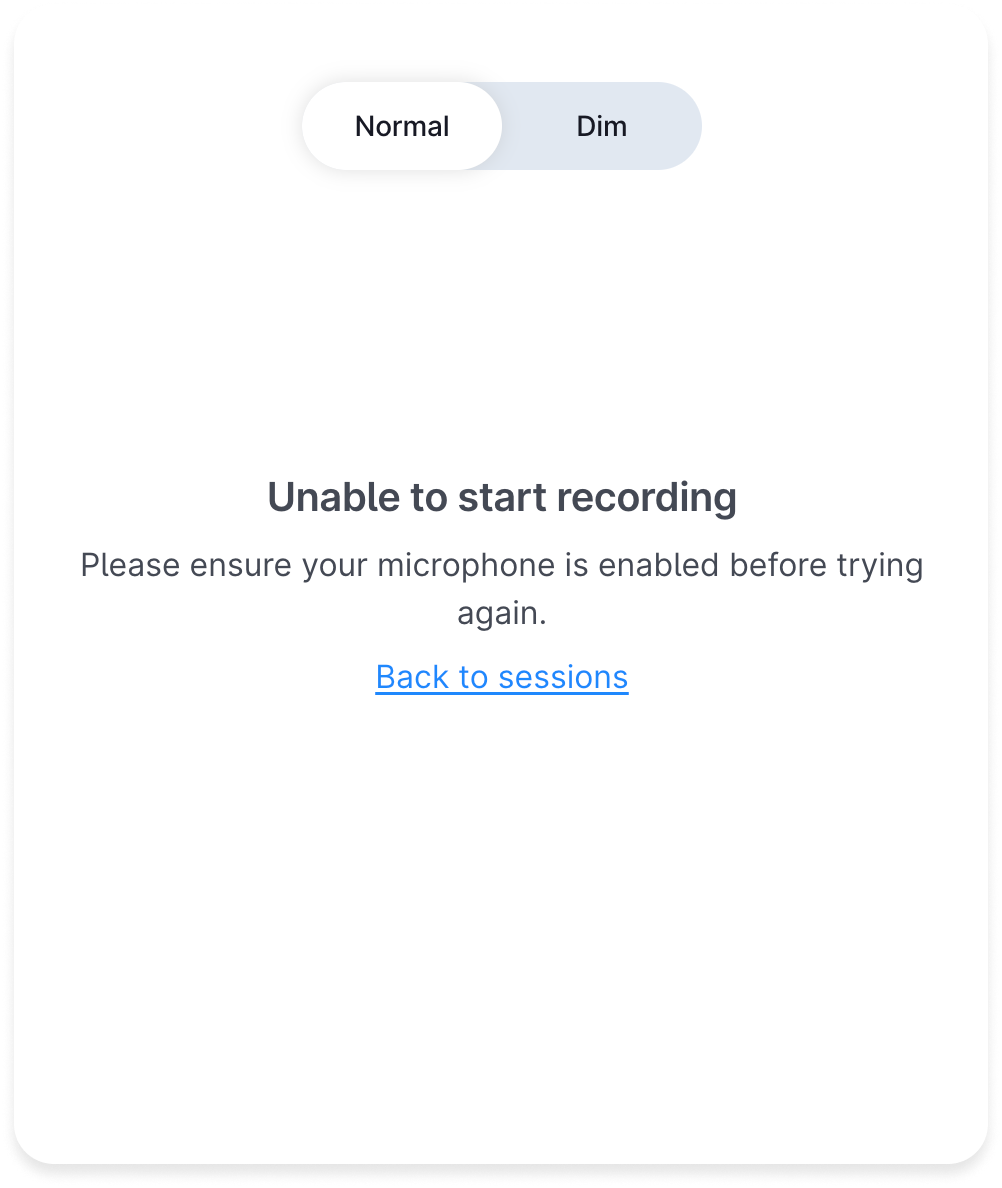
<figure><img src="/files/cliFd7awKWq7lTwHftrE" alt="" width="375"><figcaption><p>What you might see when mic access has not been granted.</p></figcaption></figure>

Scribe needs microphone access to record. If you have not yet granted this, follow the step-by-step instructions in [this guide](/guides/enable-mic-access.md).

If you are unable to enable mic permissions at all, skip to Step 3.

**2) Check if your microphone is faulty**

If microphone permissions are already enabled but Scribe still isn't picking up audio, your microphone may be faulty.

<figure><img src="/files/lW4BsJZEuYGbN5jdyNCs" alt="" width="563"><figcaption><p>What you might see when a session is initiated, but no audio was captured.</p></figcaption></figure>

**Two quick ways to check:**

* Does your microphone work for other tools, like Zoom or Google Meets?
* Are others in your organisation having the same issue on their work laptops?

<table><thead><tr><th width="329.55078125">If...</th><th>Then...</th></tr></thead><tbody><tr><td>Your microphone does not work on other tools either</td><td>Your device's microphone might be faulty — try Scribe on a different device!</td></tr><tr><td>Your microphone works fine elsewhere and/or others in your org are facing the same issue</td><td>Proceed to step 3</td></tr></tbody></table>

**3) Check with your organisation's IT Department (ITD)**

{% hint style="info" %}
This is only applicable if you were using Mobile Scribe on your work laptop.
{% endhint %}

Even if your microphone appears to be working (e.g. the soundbar is active), your organisation's security settings — such as firewalls or browser restrictions — may still be blocking Scribe from recording properly.&#x20;

**To Resolve:**

* Reach out to your ITD to help investigate why Scribe is unable to record on your work device
* To help your ITD troubleshoot, share the following details
  * The device and browser you are using
  * The Mobile Scribe URL: `mobile.scribe.gov.sg`
  * Whether your microphone works on other apps (e.g. Zoom, Google Meet)
  * Whether your colleagues are also facing the same issue
* Here's what you can use to explain the situation to them
  * *"I'm unable to use Mobile Scribe (`mobile.scribe.gov.sg`) on my work laptop as the microphone does not seem to be recording audio at all. Could you please help check if any security settings on my browser or device are preventing Scribe from recording?"*

</details>

{% hint style="success" %}
**Sessions recorded in areas with poor internet connectivity may not upload fully when saving**. \
\
If this happens, you'll be prompted to retry uploading the session. [Visit this guide to learn more](/tips-and-tricks/retry-saving-your-session.md).
{% endhint %}


---

# Agent Instructions
This documentation is published with GitBook. GitBook is the documentation platform designed so that both humans and AI agents can read, navigate, and reason over technical content effectively. Learn more at gitbook.com.

## Querying This Documentation
If you need additional information that is not directly available in this page, you can query the documentation dynamically by asking a question.

Perform an HTTP GET request on the current page URL with the `ask` query parameter, and the optional `goal` query parameter:

```
GET https://guide.scribe.gov.sg/help/scribe-did-not-record-properly.md?ask=<question>&goal=<endgoal>
```

`ask` is the immediate question: it should be specific, self-contained, and written in natural language.
`goal` is optional and describes the broader end goal you are ultimately trying to accomplish on behalf of the user. GitBook uses it to tailor the answer towards what is most useful for that goal.

The response will contain a direct answer to the question and relevant excerpts and sources from the documentation.

Use this mechanism when the answer is not explicitly present in the current page, you need clarification or additional context, or you want to retrieve related documentation sections.
